Calculator

Calculator in Visual Basic

Submitted by Yorkiebar on
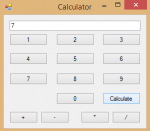
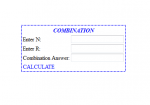
Introduction: This tutorial is on how to create a calculator in Visual Basic. Design: For this, we want the following; A textbox named 'textbox1' to show the current output. Four buttons for add, subtract, multiply and divide. Ten buttons for the ten digits. One button for the calculate process. Variables: Now we want to create some variable.

The Salary Calculator by dHROOb

Submitted by TheProgrammer on
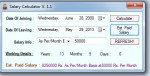
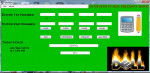
-==================================- | Project Name : Salary Calculator | -==================================- Language : .NET Time Taken : 1 Hr. Difficulty Lvl : EASY Protection : NONE License : Share-A-Like | As-It-Is Developer : SunShine/TheProgrammer Copyright : SunShine Soft Version : 1.1 (build 1.1.2) Date Of Publish : 4:44 PM 11/26/2013 -==================================- | What it is /

How to Create a Simple Calculator in Python

Submitted by Yorkiebar on
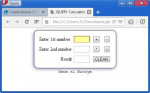
Introduction: This tutorial is on how to create a simple calculator in Python. The Theory: Here's how the program will be structured: Get the users first number Get the users second number Get the users action Use if statements to perform the calculation Print out the result Getting The Users Numbers: First we want to get the users two numbers to calculate together somehow.

How to Create an On-Screen Dimension Calculator in Visual Basic

Submitted by Yorkiebar on
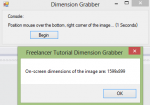
Introduction: Welcome to my tutorial on how to create a on-screen dimensions calculator. Steps of Creation: Step 1: First we want to create a form with a button to begin the process. We also want to make two labels, one to say "Console:" and label2 to contain the current console status, set the default to "Idle...". We then want to Import System.Threading because we will be using a one second

Resistor Calculator

Submitted by wasantha on
To use the calculator, select a value from the vertical group of Color Band 1, from Color Band 2 and from Color Band 3. Immediately to the left of the Calculate Values button below the three bands, there are three boxes that upon selection of a color from the bands, an identifying number and color will correspond in appearance. After selecting a value from all three bands, click on Calculate